 Nav Button
One-handed navigation for Android
Three classic keys, right under your thumb.
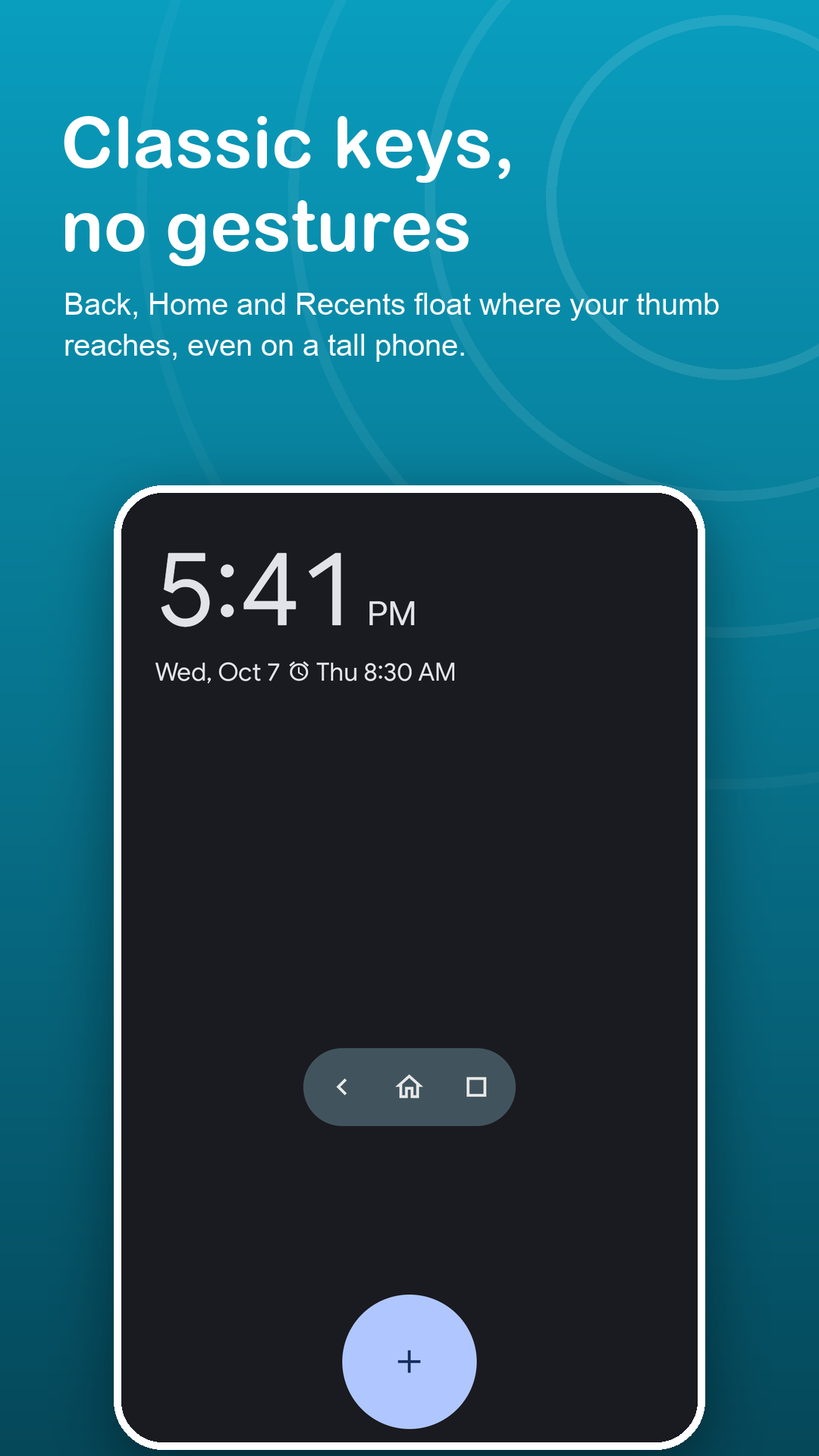
Gestures from the far edge of a tall phone are a stretch. Nav Button puts Back, Home and Recents in a small bar you slide to wherever your thumb already rests.
Free · Android 7.0+ · all eight keys included
Screenshots
Built for big screens.
How it works
Ready in three taps.
Read the notice
Nav Button shows what its accessibility service does and never does. You decide whether to agree.
Turn on the service
Android's Accessibility settings open. Switch on Nav Button and the keys appear.
Slide it into reach
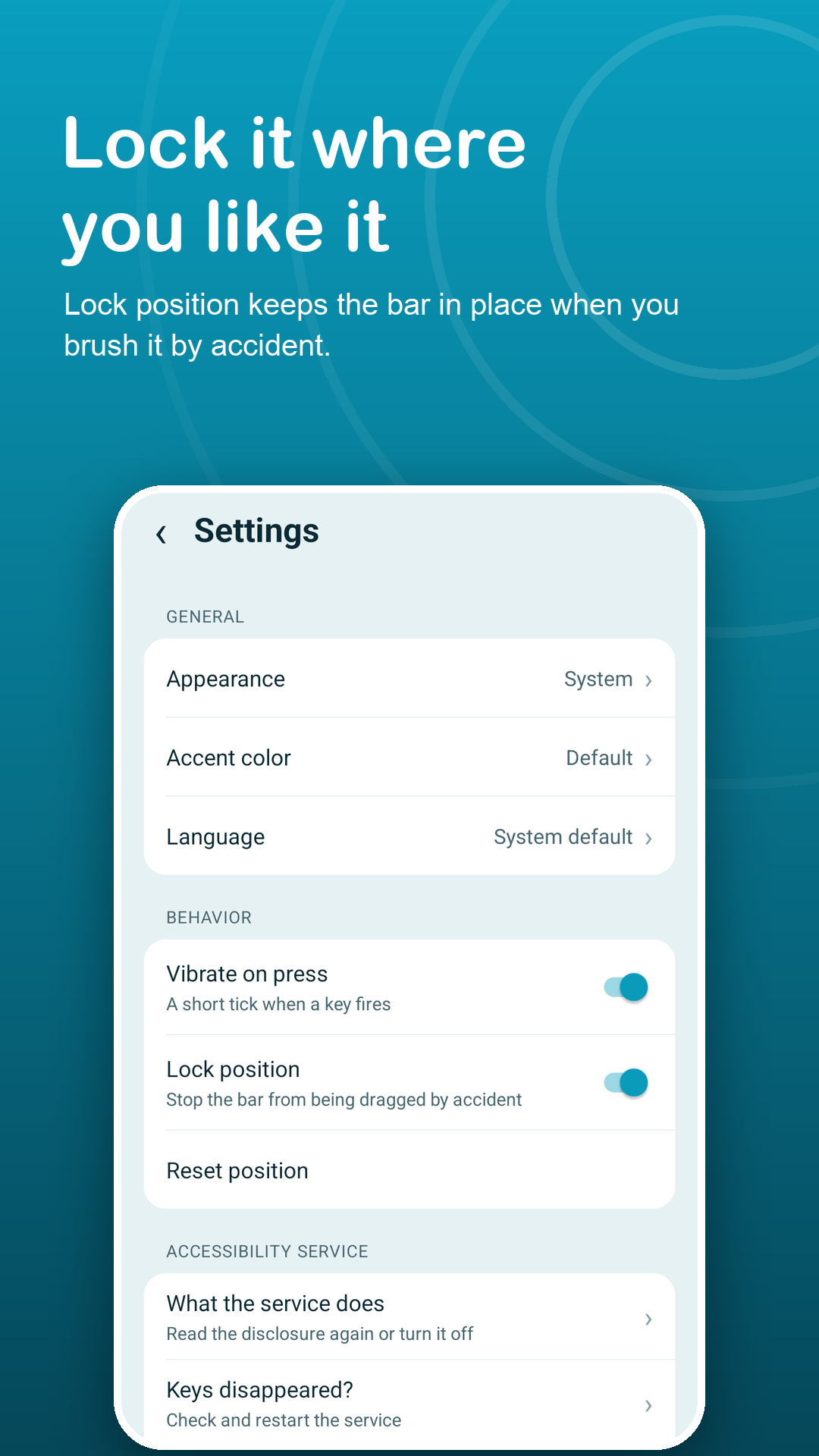
Drag the bar to your thumb, pick the size, then lock the position.
Features
Navigation that fits one hand.
Back, Home, Recents
The familiar three keys in the familiar order, always one tap away.
Any height, any side
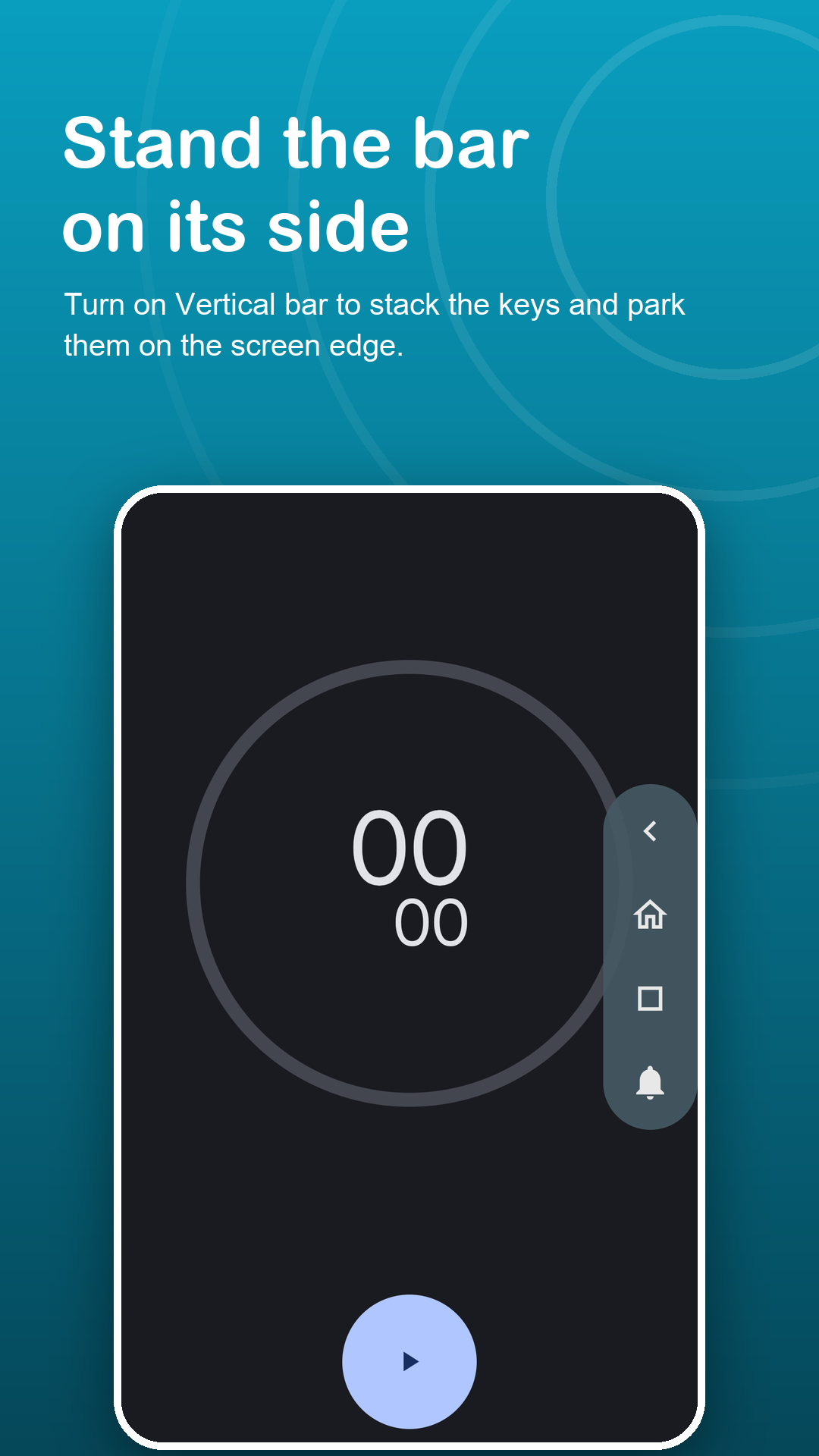
Slide the bar up from the bottom, or turn it into a vertical bar on the left or right edge.
Five more keys
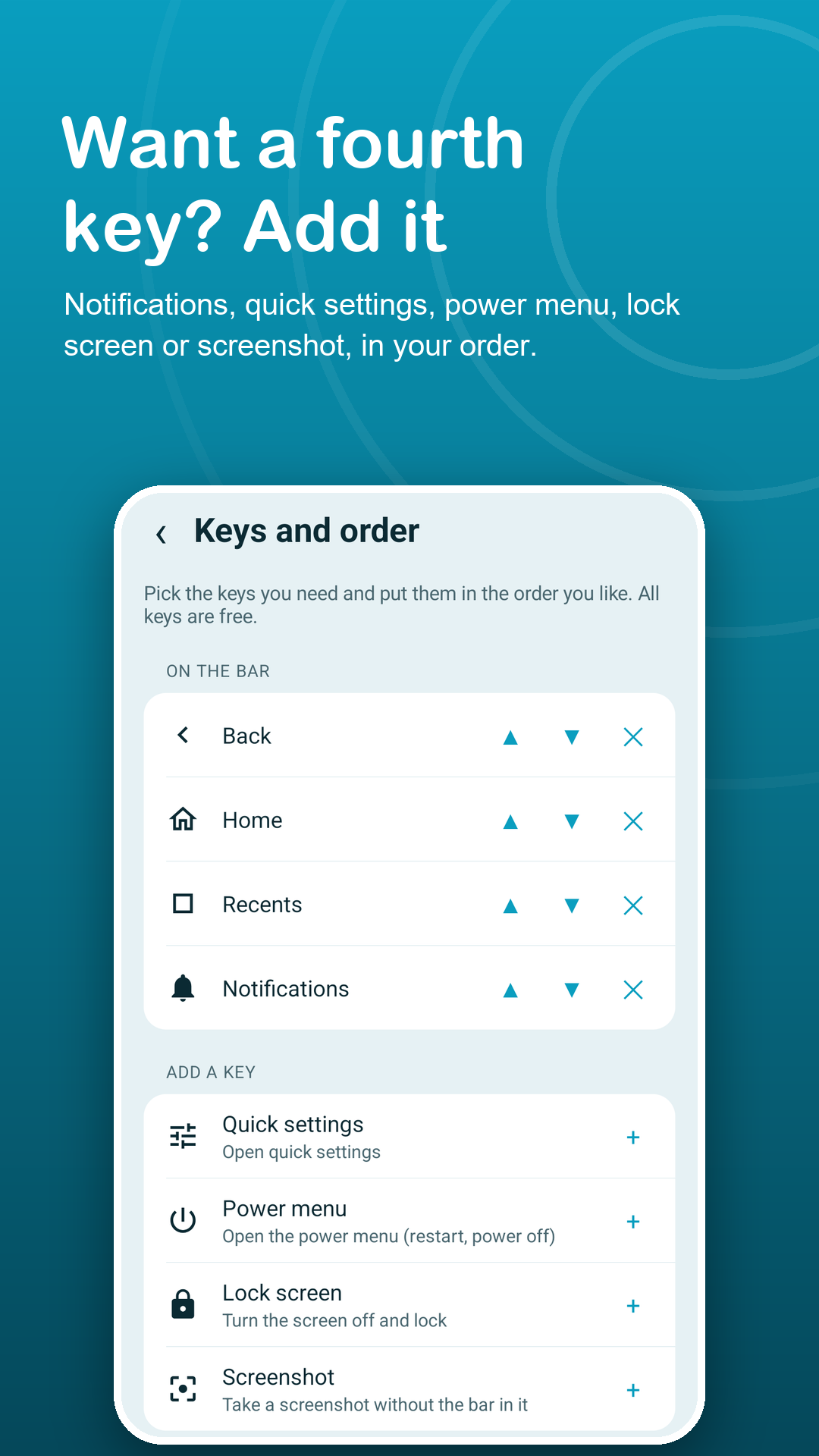
Notifications, Quick settings, Power menu, and on Android 9+ Lock screen and Screenshot.
Your size
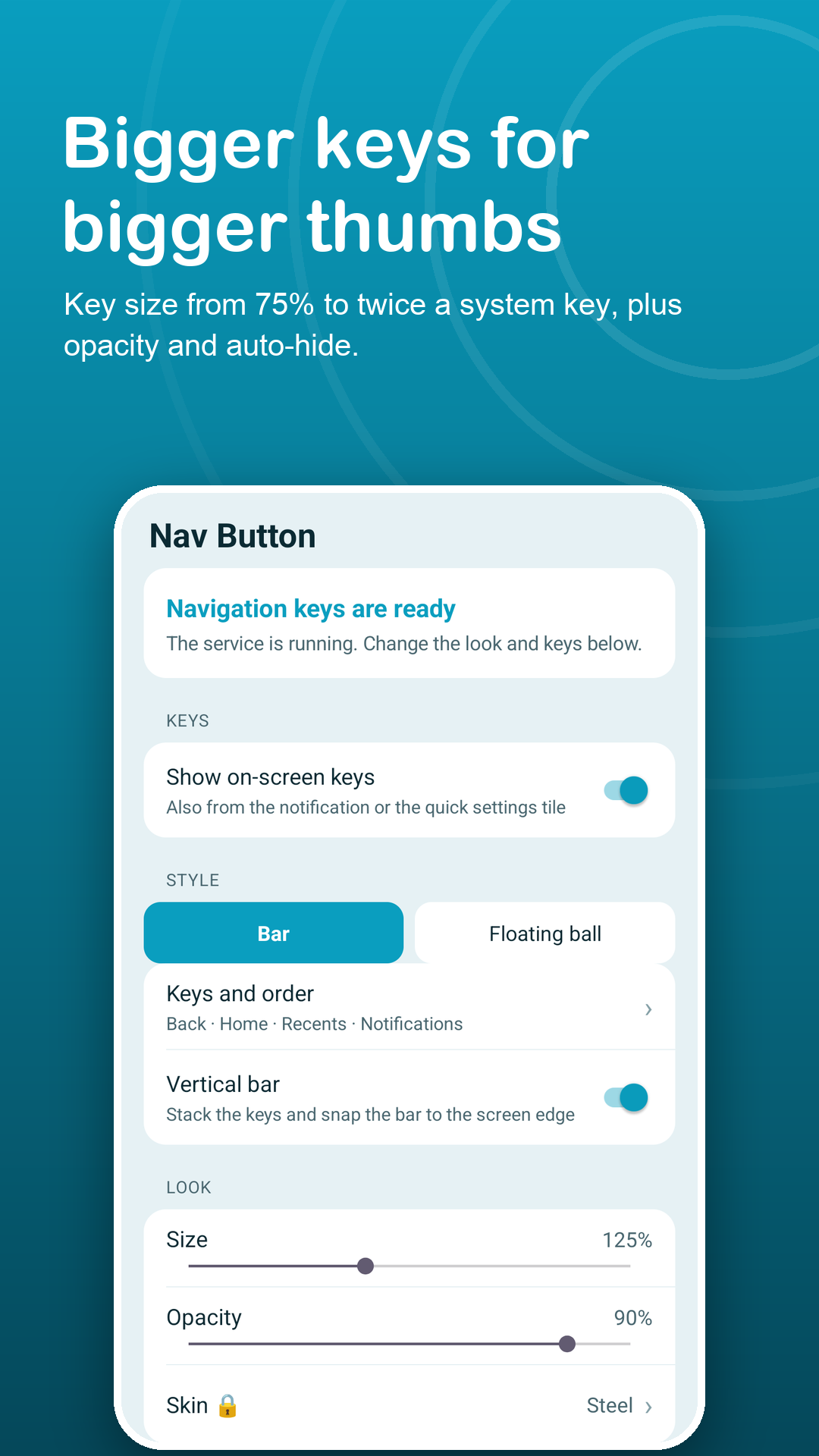
From 75% to twice a standard key, with opacity from faint to solid.
Never over your typing
The keys hide while the keyboard is open, and optionally in full screen video and games.
Quick toggles
Show, hide or hide for 10 seconds from a quiet notification or a Quick Settings tile.
Privacy
One tap, one action. Nothing more.
Nav Button uses the AccessibilityService API only to perform the key you tap and to draw its keys. No data is collected through it: it cannot read your screen or see what you type. Read the privacy policy.
FAQ
Fair questions.
Why is the Accessibility service required?
Android only lets an app press Back, Home and Recents through the AccessibilityService API. Nav Button uses it only for the action you tap and to show its keys over other apps.
Does it read my screen or what I type?
No. The service cannot read screen content, does not see your typing, and never taps or swipes on its own. It stays off until you switch it on.
Can I put the keys on the side?
Yes. Turn on the vertical bar and it snaps to the left or right edge. You can also lock its position.
Will it cover my keyboard or videos?
The keys hide while the keyboard is open. You can also let them hide in full screen videos and games.
Where do ads appear?
Only inside the app: a banner on its home screen and, now and then, a full-screen ad when you return to it. Ads never appear on the keys or over other apps.
What does Premium add?
No ads, long-press and double-tap actions for the floating ball, and four extra skins (Midnight, Chalk, Ember and Glass). Every key stays free. Choose monthly, yearly or lifetime.